It was the cable
I had a Dell laptop from around 2016 that I hadn’t switched on in years. It has 8GB of RAM, a 128GB Samsung SSD, and a 500GB Toshiba HDD that still has an old Windows install and some personal files on it. I left the HDD alone and put Debian 13 on the SSD.
The initial reason was Home Assistant. I have a GoodWe GW6000ES20 solar inverter, currently with no battery, and I wanted its data locally alongside grid usage instead of only inside the vendor app. Once I had a machine running all the time, there were a few other things I wanted to put on it too.
I thought Docker would take most of the time. It didn’t. Most of the weekend went into getting Debian installed and working out why the wired network wouldn’t come up.
The installer lost the USB stick
The install kept failing partway through, with the installer unable to read the release files off the stick. The error said it had failed to determine the codename, which made me think the image was corrupt. It wasn’t. The stick had briefly dropped off the USB bus and come back under a different name, sdd instead of sdc, so /cdrom was still pointing at a device that no longer existed.
The installer’s rescue shell is BusyBox, so there’s no fdisk. /proc/partitions was enough to find the stick by size, about 29GB next to the SSD and the Toshiba drive:
cat /proc/partitions
umount /cdrom
mount /dev/sdd1 /cdrom
ls /cdrom/dists
The first time, I typed unmount, which doesn’t exist. Once ls /cdrom/dists printed trixie, I went back to the installer menu, ran “Install the base system” again, and didn’t touch the laptop until it finished.
NO-CARRIER
I’d set the wired interface up in the installer with a static address, and it never got a link. ip a showed enp7s0 as NO-CARRIER, and pinging the router got 100% packet loss.
NO-CARRIER means the kernel can see the network interface, but the NIC isn’t reporting a physical link. So nothing can go over it, and the DHCP failure and ping loss were both just consequences of that.
dmesg looked like it had the answer:
dmesg | grep -i -E "r8169|enp7s0|firmware"In the output, the r8169 driver attached to the Realtek RTL8106e, then failed to load rtl_nic/rtl8106e-1.fw, then logged enp7s0: Link is Down over and over. The firmware failure was the line I noticed first. It wasn’t the problem. The driver had attached to the card correctly, and Ethernet later worked without that firmware file. The line that mattered was Link is Down: the port wasn’t seeing anything on the other end.
The only Ethernet cable in the house was plugged into the PS5.
I didn’t go looking for another one and finished the install over Wi-Fi instead. The laptop’s Qualcomm Atheros card works without extra firmware, which was enough to get SSH working. Not what you want for a server, but it was fine for a day.
Once a cable was plugged in and properly seated, ethtool enp7s0 reported Link detected: yes and the interface came up. The firmware warning is still in dmesg. I never installed firmware-realtek, and Ethernet has worked fine without it.
A small base system
Once networking was sorted, there wasn’t much to the host itself. The static IP, 192.168.10.150, is set on the Debian side. My router hands out .2 to .100 over DHCP, so an address outside that range doesn’t need a reservation. SSH only accepts keys and root login is disabled, set in a drop-in under /etc/ssh/sshd_config.d/. ufw allows SSH from the LAN only, plus anything arriving over Tailscale.
Docker publishes container ports by writing its own iptables rules, and those bypass ufw. So the containers that aren’t on host networking publish to 127.0.0.1 only, and Caddy is the thing in front of them.
The hostname is homelab, so from home I connect with ssh homelab.
By default, closing the lid suspends the laptop. I changed logind to ignore the lid switch:
[Login]
HandleLidSwitch=ignore
HandleLidSwitchExternalPower=ignore
HandleLidSwitchDocked=ignore
Every service runs from Docker Compose, with the compose file under ~/stacks/apps/ and each service’s data under /srv/docker/<service>/. I wanted the running services described in files, rather than having to remember what I installed or how I started it six months later.
I also skipped a few things that show up on most homelab lists. Jellyfin and Kavita were the obvious examples, because I know I wouldn’t use either of them.
Names instead of ports
Once I had several services running, I had ports 8123, 3001 and 8000 to remember. Caddy runs on host networking in front of them:
http://homeassistant.internal {
    reverse_proxy 127.0.0.1:8123
}

http://uptime.internal {
    reverse_proxy 127.0.0.1:3001
}

http://paperless.internal {
    reverse_proxy 127.0.0.1:8000
}

:8081 {
    reverse_proxy 127.0.0.1:3001
}

:8082 {
    reverse_proxy 127.0.0.1:8000
}
It’s plain HTTP. The .internal names only exist in my Mac’s /etc/hosts, pointing at 192.168.10.150, which is fine while the Mac is the only thing using them. I used .internal because it’s reserved for private networks and won’t collide with a public domain later. You do have to type the http:// part, because otherwise Chrome tries HTTPS first.
Home Assistant returned 400 Bad Request through Caddy at first. It rejects proxied requests unless the proxy is on its trusted list, so the fix was adding 127.0.0.1 as a trusted proxy in Home Assistant’s HTTP settings.
Getting Home Assistant to talk to the inverter
The inverter connects to the home network through GoodWe’s own Wi-Fi dongle. Home Assistant has a built-in GoodWe integration that uses the goodwe Python library to talk to the dongle over the local network, so this was the part I expected to be straightforward.
The integration setup failed, so I ran the library directly from inside the Home Assistant container:
docker exec -i homeassistant python3 -c "import asyncio,goodwe; i=asyncio.run(goodwe.connect('192.168.10.8')); print(i.model_name, i.serial_number)"InverterError('Unable to connect to the inverter at host=192.168.10.8, or your inverter is not supported yet.
Failures=[RequestFailedException("No valid response received to 'aa55c07f0102000241' request."),
RequestFailedException("No valid response received to 'f70388b800213ac1' request.", 1), ...])
[output truncated]Pinging 192.168.10.8 worked with no packet loss, so the dongle was on the network. The library had tried both of GoodWe’s request formats on the dongle’s local port, UDP 8899, and got no answer to either.
The problem was a setting on the dongle. In the SolarGo app, under the dongle’s Privacy & Security screen, Modbus TCP was turned off. With it off, the dongle wasn’t answering Home Assistant. After enabling it, the same command printed the model name and serial number, and the integration found the inverter straight away.
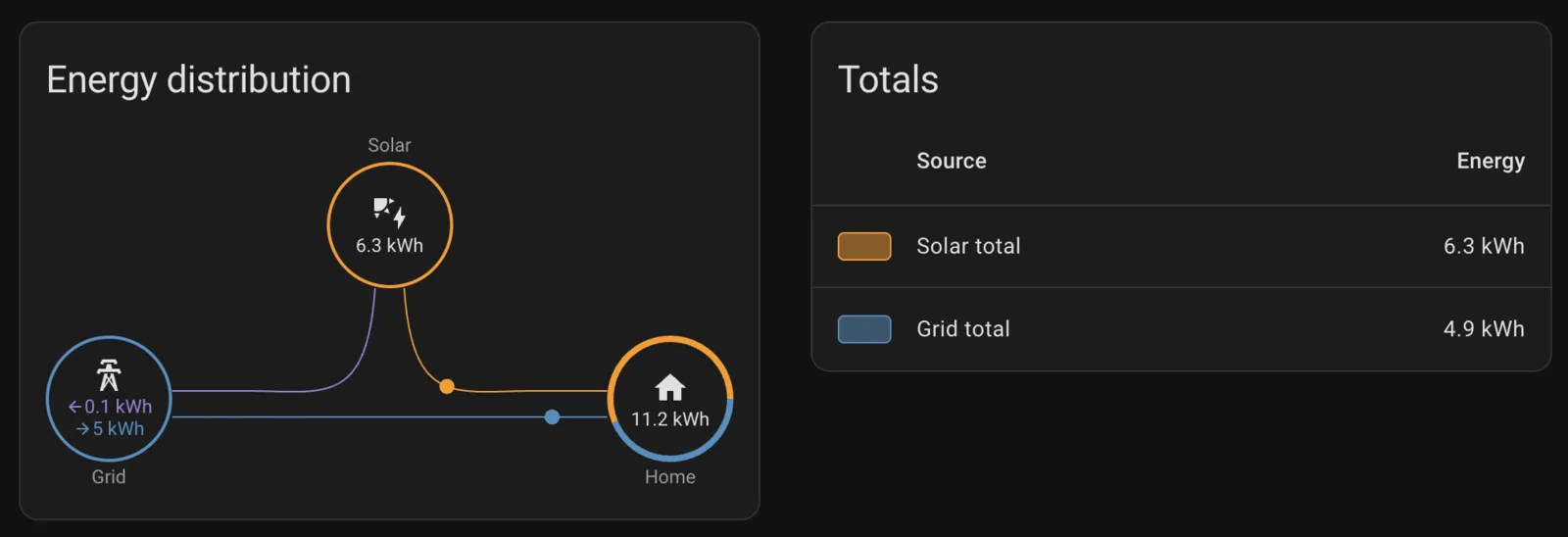
The Energy dashboard now takes grid import and export from the inverter’s meter sensors and solar from its total PV generation. With no battery, the inverter shuts down around dusk, so there’s nothing to read overnight.
I also tried to reserve the dongle’s address in the router so it can’t change after a power cut. The router’s MAC reservation form rejected every MAC format I tried, so for now the inverter is on a normal DHCP address.
Everything else
Uptime Kuma checks Home Assistant, my internet connection and the other services, and sends Telegram alerts when something stops responding. It runs on the same laptop, so it can’t tell me when the laptop itself is down.
Tailscale runs on both the server and my Mac. Away from home I connect with ssh homelab-away, and since the .internal names only exist on my LAN, I use the Tailscale hostname instead: homelab:8123 for Home Assistant, :8081 for Uptime Kuma and :8082 for Paperless. Those ports are only allowed on the Tailscale interface, and nothing is forwarded on the router.
Paperless-ngx is the newest service on the machine, running with PostgreSQL and Valkey. I’ve had scanned documents spread across random folders for years. Anything dropped into its consume folder gets picked up, and I’m moving them over slowly.
Not done yet
Backups. Everything the services store lives under /srv/docker, which should make that simpler, but right now none of it is copied anywhere else. That’s the next thing I need to sort out.
And at some point I should probably check what’s still on that old Windows drive.